New article
Recently updated
Viewing how long reports have been open

Who is this article for?
Users who are using the Reporting module.
No permission required.
Release 57.5.0.0
The Reports Register now includes an optional Days Open column that automatically calculates how long reports have been open, eliminating the need to manually compare submission and closure dates.
Understanding the Days Open column
The Days Open column displays different values depending on the report's status:
Report Status | What you'll see | What it means |
| Closed | A positive number (e.g. 21) | How many days it took from submission to closing |
| Open | A negative number (e.g. -45) | How many days it's been open so far — the bigger the number, the longer it's been sitting open |
| Draft | Blank | Not calculated (drafts have no Submitted Date) |
Tip: For open reports, look for the largest negative numbers — those are your longest-standing open reports, worth checking on first.
Note: Days Open is for viewing only — it cannot be used to sort or filter, and is not available via the Data API.
Enabling the Days Open column
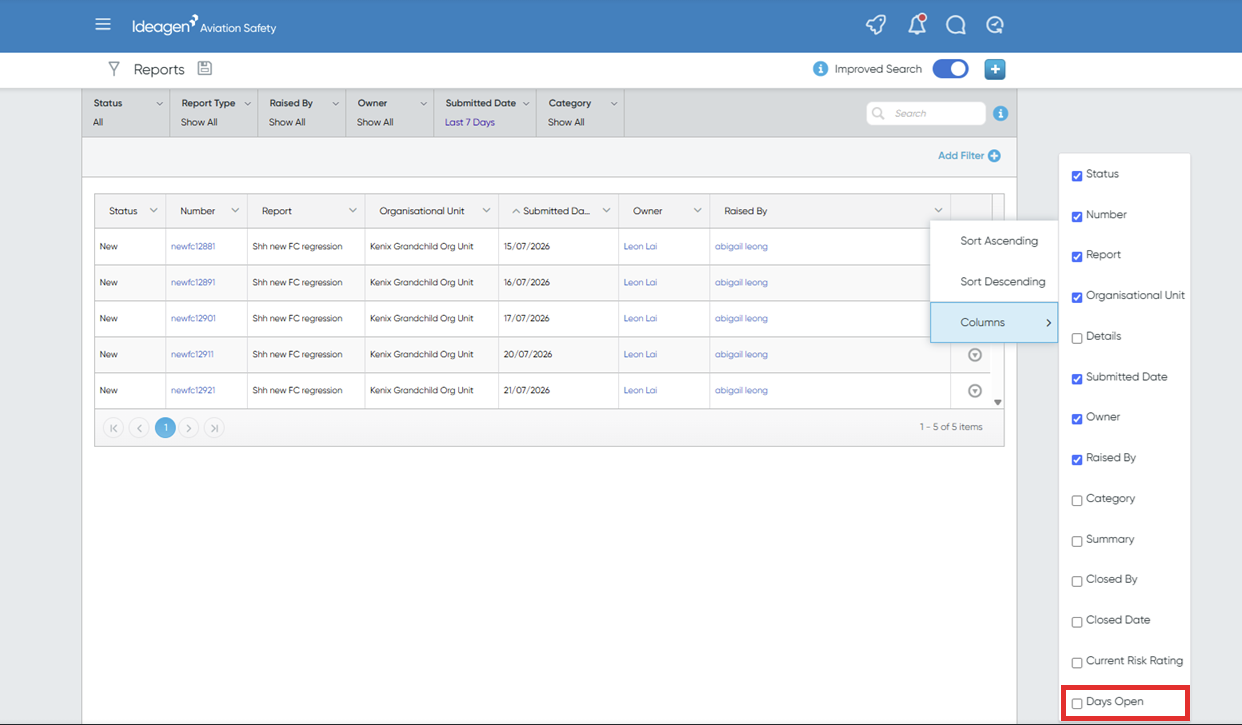
To enable the Days Open column:
- Open the Reports Register.
- Open the column chooser.
- Select Days Open.
The column will remain part of your view, even after logging out and back in, until you choose to remove it.